Advanced Widgets
Custom rendering, file dialogs, navigation bars, animated panels, icons, and more.
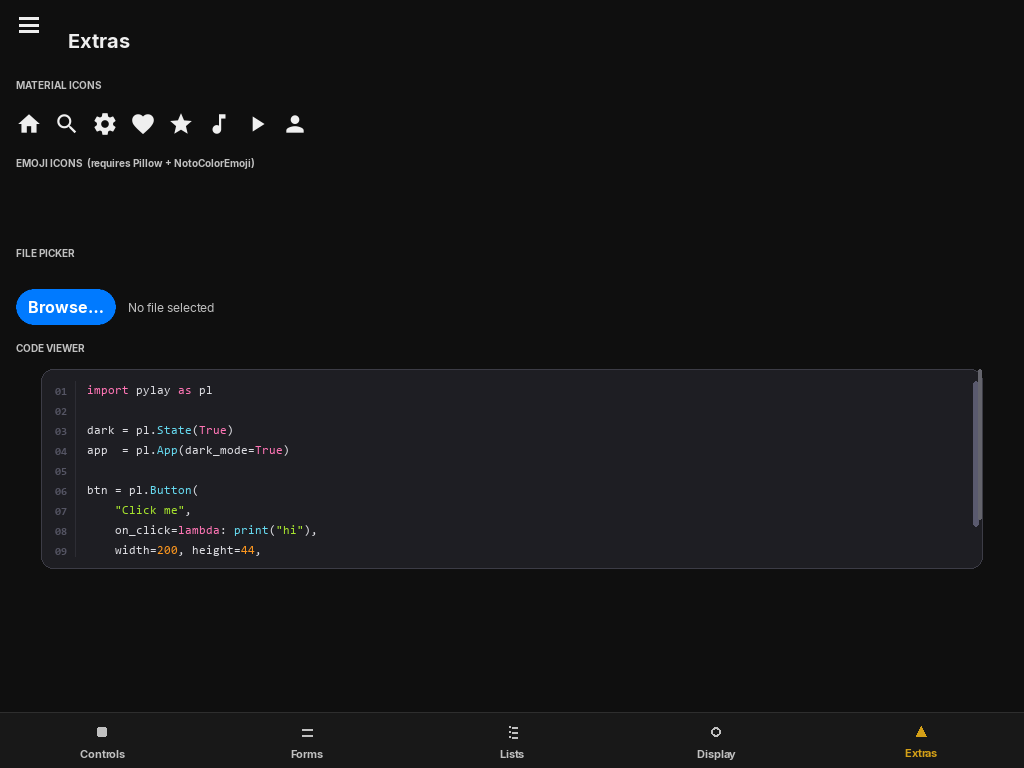
PygameCanvas
Embeds raw pygame rendering inside a PyLay layout. The only widget in PyLay that draws content you control entirely. Three integration styles:
PygameCanvas(
    on_draw: Callable[[pygame.Surface, pygame.Rect], None] | None = None,
    on_event: Callable[[pygame.event.Event, pygame.Rect], bool] | None = None,
    on_update: Callable[[float, pygame.Rect], None] | None = None,
    target=None,        # object with .draw(), .handle_event(), .update() methods
    draw_border=True,
    anchor="top_left", x=0, y=0, width=200, height=200,
)
Style 1 — Callbacks
def my_draw(surface, rect):
    pygame.draw.circle(surface, (255, 100, 0),
                       rect.center, min(rect.w, rect.h) // 3)

PygameCanvas(on_draw=my_draw,
             anchor="center", x=0, y=0, width=200, height=200)
Style 2 — Target object (used by PyLute ScoreCanvas)
class MyRenderer:
    def draw(self, surface, rect):
        # your rendering here
        pass
    def handle_event(self, event, rect):
        return False  # True if event was consumed
    def update(self, dt, rect):
        pass

PygameCanvas(target=MyRenderer(), ...)
Style 3 — Subclass
class MyWidget(PygameCanvas):
    def draw_content(self, surface, rect):
        pygame.draw.rect(surface, iOSTheme.accent, rect, border_radius=8)
    def handle_content_event(self, event, rect):
        return False
    def update_content(self, dt, rect):
        pass
ScrollableCanvas
A PygameCanvas with spring-physics vertical scrolling. The target object must implement draw(surface, rect) and content_height(canvas_w) → int.
ScrollableCanvas(target=my_renderer,
                 anchor="top_left", x=0, y=0, width=1.0, height=1.0)
This is the widget used by PyLute's ScoreCanvas. See the PyLute canvas documentation for a complete example.
FilePicker
Zero-size headless widget. Opens a native OS file dialog without blocking the pygame event loop. Must be added to the widget tree to function.
FilePicker(
    title="Open file",
    filters: list[str] | None = None,
    # filters format: ["Label | *.ext1 *.ext2", "All files | *"]
)Open the dialog. on_file is called with the selected path, or "" if the user cancelled.
from pylay import FilePicker, Button

picker = FilePicker(
    title="Open MusicXML",
    filters=["MusicXML | *.xml *.mxl *.musicxml", "All files | *"],
)
root.add_child(picker)   # must be in the tree

btn = Button("Open...",
             on_click=lambda: picker.pick(lambda p: load_score(p) if p else None),
             anchor="top_left", x=0, y=0, width=120, height=44)
root.add_child(btn)
OptionSelector
OptionSelector(
    options: list[tuple[str, Any]],  # [(label, value), ...]
    value: State,
    on_change: Callable[[Any], None] | None = None,
    anchor="top_left", x=0, y=0, width=300,
    row_height=48, spacing=6, font_size=15,
)
A vertical list of labelled options with a spring-animated accent bar that slides to the selected row. Useful for setting selection where all options are visible simultaneously (e.g. language, difficulty).
lang = State("en")
selector = OptionSelector(
    options=[("English", "en"), ("Deutsch", "de")],
    value=lang,
    on_change=lambda v: set_language(v),
    anchor="top_left", x=0, y=0, width=1.0,
)
SlideReveal
SlideReveal(
    child: UIElement | None = None,
    max_height=200,
    visible=True,
    response=0.38,
    damping_fraction=1.0,
)
Spring-animates a child element open and closed by interpolating its clipped height. The widget always reserves max_height in the layout.
Animate open (True) or closed (False).
HamburgerButton
HamburgerButton(
    open_state: bool | State = False,
    on_toggle: Callable[[bool], None] | None = None,
    anchor="top_left", x=0, y=0, width=40, height=40,
    active_color=None,
)
Three-bar icon that spring-morphs into an × when open_state is True.
BottomNavigationBar
BottomNavigationBar(
    active_tab_state: State,
    items: list[dict],   # [{"title": str, "icon_fn": Callable[[], Surface]}, ...]
    on_change: Callable[[int], None] | None = None,
    height=64,
    anchor="bottom_left", x=0, y=0, width=1.0, height=64,
)
iOS-style tab bar pinned to the bottom. Selected tabs spring-scale to 1.1×. Pair with a PageRouter for navigation.
SideNav
SideNav(
    active_tab_state: State,
    items: list[dict],
    on_change: Callable[[int], None] | None = None,
    width=200,
    title="",
    footer_fn: Callable[[], str] | None = None,
)
Vertical sidebar navigation with a header, item list, and an optional footer string. Selected row highlighted with theme accent.
EmojiIcon
EmojiIcon(
    char: str,   # e.g. "🎵"
    size=32,
    color=None,  # tint color, defaults to iOSTheme.label
    anchor="top_left", x=0, y=0,
)
Renders a single emoji using NotoColorEmoji via Pillow. Falls back gracefully (nothing rendered) if Pillow is not installed.
Icon
Icon(
    name: str,              # Material Design icon name, e.g. "music_note"
    size: int = 24,
    color: pygame.Color | tuple | None = None,  # defaults to iOSTheme.label
    anchor="top_left", x=0, y=0,
)
Renders a Material Design icon glyph from the bundled MaterialIcons-Regular.ttf font. Icon names use underscores (e.g. "arrow_back", "check_circle", "volume_up"). Unknown names emit a UserWarning at runtime. Rendered surfaces are cached by name, size, and colour.
from pylay import Icon

Icon("music_note", size=24, anchor="left", x=12, y=0)
Icon("settings",   size=20, anchor="right", x=-12, y=0)
Icon("arrow_back", size=28, color=pygame.Color(255, 80, 80),
anchor="top_left", x=8, y=8)Returns a low-level icon painter fn(surface, cx, cy, scale, color) compatible with BottomNavigationBar and Badge icon_fn parameters.
from pylay import Icon, BottomNavigationBar, State

tab = State(0)
nav = BottomNavigationBar(
    active_tab_state=tab,
    items=[
        {"title": "Home",     "icon_fn": Icon.as_icon_fn("home")},
        {"title": "Songs",    "icon_fn": Icon.as_icon_fn("library_music")},
        {"title": "Settings", "icon_fn": Icon.as_icon_fn("settings")},
    ],
    on_change=lambda i: tab.set(i),
    anchor="bottom_left", x=0, y=0, width=1.0,
)
Browse available icon names at fonts.google.com/icons — use the name shown with spaces replaced by underscores.
ImageIcon
ImageIcon(
    path: str,              # path to PNG/JPG/etc.
    size: int = 32,
    color: pygame.Color | tuple | None = None,  # tint color (if tint=True)
    tint: bool = True,      # multiply image RGB by color; False = render original
    anchor="top_left", x=0, y=0,
)
Loads an image from disk, scales it to size × size, and optionally tints it to the given colour using BLEND_RGBA_MULT. The raw surface is cached by absolute path so the file is only loaded once.
from pylay import ImageIcon

# Tinted to theme colour (default)
ImageIcon("assets/img/logo.png", size=40,
          anchor="center", x=0, y=0)

# Original colours preserved
ImageIcon("assets/img/album_art.png", size=64, tint=False,
anchor="top_left", x=0, y=0)Returns the same low-level fn(surface, cx, cy, scale, color) painter as Icon.as_icon_fn, for use as a BottomNavigationBar icon.
icon_registry
import pylay as pl

# Check available icon names
pl.icon_registry.ICONS          # dict[str, str] — name → glyph character
pl.icon_registry.get("settings")  # → glyph str, or "?" for unknown names
The icon_registry module exposes the full Material Design codepoints table that Icon draws from. Use ICONS.keys() to enumerate all available names, or get(name) to safely look up a glyph with a fallback.