Display Widgets
Non-interactive display elements: Label, ProgressBar, ProgressRing, LineChart, CodeViewer, Divider, Badge, Avatar, Card, ListItem, EmptyState.
Label
Label(
    text: str | State,
    font_size=16,
    font_name="Arial",
    color=None,         # defaults to iOSTheme.label
    bold=False,
    wrap_width=None,    # None = single line; int = word-wrap at this pixel width
    anchor="top_left", x=0, y=0, width=100, height=30,
)
Pass a State object as text and the label updates automatically whenever the state changes. The value is converted to string via str().
from pylay import Label, State

score = State(0)
lbl = Label(score, font_size=32, bold=True,
            anchor="top_left", x=0, y=0, width=1.0, height=56)

# Long text with wrapping:
desc = Label(
    "This is a long description that will wrap at 400 pixels.",
    wrap_width=400,
    color=iOSTheme.secondary_label,
    anchor="top_left", x=0, y=0, width=1.0, height=80,
)
ProgressBar
ProgressBar(
    progress: float | State = 0.0,  # 0.0 to 1.0
    anchor="top_left", x=0, y=0, width=200, height=8,
    active_color=None,              # defaults to ColorPalette.BLUE
)
Animates the fill from its current position to the target value. When progress is a State, the bar tracks it automatically.
lesson_progress = State(0.0)
bar = ProgressBar(progress=lesson_progress,
                  active_color=ColorPalette.GREEN,
                  anchor="top_left", x=0, y=0, width=1.0, height=6)

# Update progress:
lesson_progress.value = notes_correct / notes_total
LineChart
LineChart(
    data: list[float],
    labels: list[str] | None = None,
    active_color=None,
    title="Metric Trend",
    anchor="top_left", x=0, y=0, width=400, height=220,
)
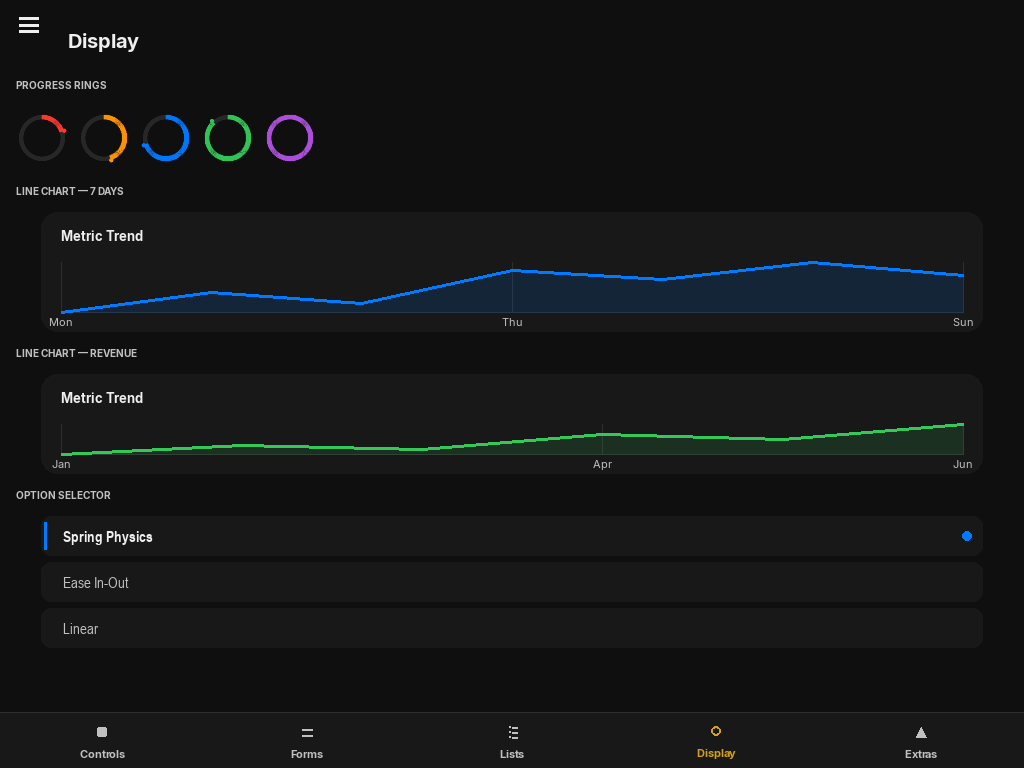
Renders a line chart that morphs up from zero on load using a spring animation. An interactive tooltip tracks the mouse along the line and displays the exact value at that position. X-axis labels (if provided) appear below the chart.
from pylay import LineChart, ColorPalette

chart = LineChart(
    data=[42, 58, 61, 74, 88, 79, 95],
    labels=["Mon", "Tue", "Wed", "Thu", "Fri", "Sat", "Sun"],
    active_color=ColorPalette.TEAL,
    title="Weekly Accuracy (%)",
    anchor="top_left", x=0, y=0, width=1.0, height=240,
)
CodeViewer
CodeViewer(
    code_text: str | State,
    anchor="top_left", x=0, y=0, width=500, height=300,
)
A scrollable Python code display with syntax highlighting (keywords, strings, numbers, comments) and a gutter with line numbers. Useful for displaying lesson code or error messages. Pass a State to update the displayed code dynamically.
from pylay import CodeViewer, State

code = State("# Your code here\nprint('Hello, world!')")

viewer = CodeViewer(
    code_text=code,
    anchor="top_left", x=0, y=0, width=1.0, height=0.6,
)

# Update dynamically:
code.set("def greet(name):\n    print(f'Hello, {name}!')")
ProgressRing
ProgressRing(
    progress: float,            # 0.0 – 1.0
    size: int = 48,
    active_color: pygame.Color | None = None,  # defaults to ColorPalette.BLUE
    stroke: int = 5,
)
Circular progress indicator with supersampled anti-aliasing. Renders a thin ring arc from the top, sweeping clockwise. Caches the rendered surface — only redraws on value or size change.
from pylay import ProgressRing, ColorPalette

ring = ProgressRing(
    progress=0.72,
    size=64,
    active_color=ColorPalette.GREEN,
    stroke=6,
    anchor="center", x=0, y=0,
)
Divider
Divider(
    width: int | float = 1.0,   # fraction of parent or fixed px
)
A 1 px horizontal line in iOSTheme.fill_tertiary. Used to visually separate groups inside a VStack or Card.
from pylay import VStack, Label, Divider

col = VStack(spacing=0, padding=12, width=1.0, height=200)
col.add_child(Label("Section A", font_size=14))
col.add_child(Divider())
col.add_child(Label("Section B", font_size=14))
Badge
Badge(
    text: str,
    color: pygame.Color,
    icon: str = "",              # emoji character (alternative to icon_fn)
    icon_fn: Callable | None = None,
    icon_size: int = 18,
    font_size: int = 13,
    height: int = 34,
    width: int | None = None,   # auto-sized from text length if None
    text_color: pygame.Color | None = None,   # defaults to white
    border_radius: int | None = None,         # defaults to height // 2 (pill shape)
)
Coloured pill label — used for difficulty tags, status chips, and count indicators. Width is automatically derived from text length when not specified.
from pylay import Badge, ColorPalette

Badge("Beginner", ColorPalette.GREEN, anchor="top_left", x=0, y=0)
Badge("Advanced", ColorPalette.RED,   anchor="top_left", x=0, y=0)

# With emoji icon:
Badge("🎵  4 Songs", ColorPalette.BLUE, icon="🎵",
      anchor="top_left", x=0, y=0)
Avatar
Avatar(
    initials: str,              # up to 2 characters displayed; auto-uppercased
    size: int = 40,
    color: pygame.Color | None = None,  # circle fill; defaults to ColorPalette.BLUE
)
Circular avatar that renders up to two initials in white on a coloured circle. Font size scales proportionally to size.
from pylay import Avatar, ColorPalette

Avatar("MA", size=48, color=ColorPalette.PURPLE,
       anchor="top_left", x=16, y=16)
Card
Card(
    spacing: int = 8,
    padding: int = 14,
    border_radius: int = 12,
    # All VStack / UIElement kwargs are accepted (width, height, anchor, x, y, …)
)
A VStack with a rounded iOSTheme.secondary_background fill — the standard container for grouped content. Add children with add_child().
from pylay import Card, Label, Divider, Switch, State

notifications = State(True)

card = Card(anchor="top_left", x=16, y=16, width=1.0)
card.add_child(Label("Notifications", font_size=15))
card.add_child(Divider())
card.add_child(Switch(state=notifications, anchor="left", x=0, y=0))
ListItem
ListItem(
    title: str,
    subtitle: str = "",
    leading=None,               # UIElement placed on the left edge
    trailing=None,              # UIElement placed on the right edge
    on_click: Callable | None = None,
    height: int = 52,
    title_size: int = 14,
    leading_width: int = 36,
    width: int | float = 1.0,
    background_color: pygame.Color | None = None,
    border_radius: int = 10,
)
A standard list row with an optional title, subtitle, leading widget (icon/avatar), and trailing widget (badge/chevron). When on_click is provided, a transparent tap-target button covers the whole row.
from pylay import ListItem, Icon, Badge, ColorPalette

item = ListItem(
    title="Bach — Prelude in C",
    subtitle="Easy · 2 min",
    leading=Icon("music_note", size=20, anchor="center", x=0, y=0),
    trailing=Badge("New", ColorPalette.BLUE, height=24, font_size=11),
    on_click=lambda: open_song("bach_prelude"),
    anchor="top_left", x=0, y=0,
)
EmptyState
EmptyState(
    icon: str,          # emoji character
    title: str,
    subtitle: str = "",
    icon_size: int = 48,
    # Defaults to width=1.0, height=1.0 (fills parent)
)
Centred placeholder shown when a list or page has no content. Renders an emoji, a bold title, and an optional subtitle line, all centred in the available space.
from pylay import EmptyState

placeholder = EmptyState(
    icon="🎵",
    title="No songs yet",
    subtitle="Import a MusicXML file to get started.",
    anchor="top_left", x=0, y=0, width=1.0, height=1.0,
)