Getting Started with PyLute
Understand the core concepts, avoid common pitfalls, and build your first score in ten minutes.
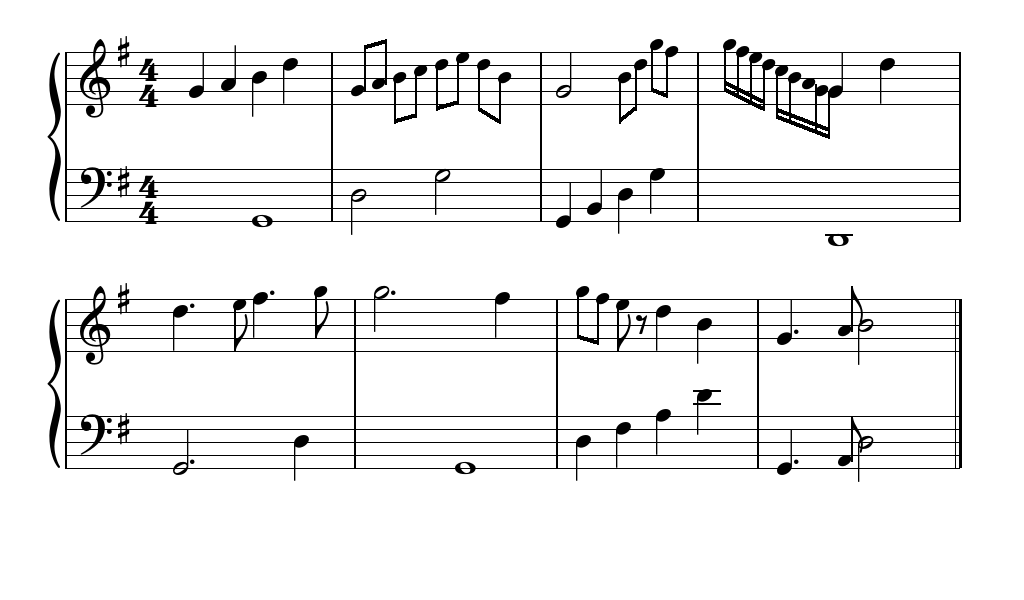
Installation
PyLute is distributed as a directory within the Pianove repository. Copy the PyLute/pylute/ and PyLute/assets/ folders into your project, then install the only dependency:
pip install pygameImport the library:
import pylute
# or selectively:
from pylute import Score, load_musicxml, ScoreCanvas, ScorePagerassets/Bravura.otf) must be on a path accessible relative to the pylute/ module directory. Do not move the font file independently of the module.
Core concepts
The object hierarchy
Every score in PyLute is structured as a strict hierarchy:
Score
└── Staff  (one per staff line, e.g. treble + bass for piano)
    └── Bar  (one measure)
        └── Note | Rest  (musical events in order)
You never instantiate Staff, Bar, or most notation elements directly. The Score constructor creates them, and addNote() / addRest() populate them automatically.
Responsive layout
PyLute reflows the score dynamically. Every call to score.draw() reads score.surface.get_size() and recalculates bar widths, system breaks, and vertical spacing. This means:
- You must set
score.surface = screenwhen the window is resized before callingdraw(). draw()is idempotent — calling it 60 times per second is the correct pattern.- You do not need to call any layout method manually after adding notes.
Bars fill up
Each bar has a fixed beat capacity determined by the time signature. In 4/4, a bar holds exactly 1.0 whole-note worth of beats. When a bar is full, addNote() automatically moves to the next bar. If all bars are full, new notes are silently ignored — create a Score with more bars up front.
Surface ownership
PyLute does not create or own a pygame window. You create the surface, hand it to the score, and call draw() inside your loop. PyLute draws on top of whatever is already on the surface — clear it yourself before drawing.
Recommended learning path
Follow this sequence when learning PyLute. Each step builds on the previous one.
Step 1 — Build a score programmatically
Start by creating a Score and adding notes manually. This teaches you the object model without dealing with file parsing.
import pygame as pg
import pylute

pg.init()
screen = pg.display.set_mode((1200, 600), pg.RESIZABLE)

score = pylute.Score(surface=screen, staffs=1, bars=4, key="C", time=(4, 4))
score.addNote("quarter", "C4")
score.addNote("quarter", "E4")
score.addNote("quarter", "G4")
score.addNote("quarter", "C5")

# Fill a second bar
score.addNote("half", "G4")
score.addNote("half", "E4")

clock = pg.time.Clock()
while True:
    for event in pg.event.get():
        if event.type == pg.QUIT: pg.quit(); exit()
        if event.type == pg.VIDEORESIZE:
            score.surface = pg.display.set_mode(event.size, pg.RESIZABLE)

    screen.fill((255, 255, 255))
    score.draw()
    pg.display.flip()
clock.tick(60)Step 2 — Load a MusicXML file
Once you understand the manual API, load a real piece. MusicXML files are available from MuseScore, IMSLP, and many other sources.
score = pylute.load_musicxml(
    "bach_minuet.xml",
    surface=screen,
    length=1100,          # staff width in pixels
)
# score.title, score.composer, etc. are populated automatically
print(score.title)        # "Minuet in G Major"

screen.fill((255, 255, 255))
score.draw()
Step 3 — Add scrolling with ScoreCanvas
For long scores, wrap the renderer in a ScoreCanvas and hand it to PyLay's ScrollableCanvas widget. This gives you spring-physics scrolling with no extra code.
from pylute import ScoreCanvas
from pylay import App, ScrollableCanvas

app = App("Score Viewer", 1200, 800)
sc = ScoreCanvas()
sc.load("chopin_nocturne.xml")

widget = ScrollableCanvas(target=sc, anchor="top_left",
                          x=0, y=0, width=1.0, height=1.0)
app.root.add_child(widget)
app.run()
Step 4 — Paginate with ScorePager
For an app-style presentation, use ScorePager to split the score into pages and navigate between them.
from pylute import ScorePager
from pylay import App, Button, FloatLayout

app = App("Paged Score", 1200, 800)
pager = ScorePager()
pager.load("piece.xml")
pager.on_page_change = lambda cur, total: print(f"Page {cur}/{total}")

router = pager.build_view(app=app)
app.root.add_child(router)

# Navigation buttons:
prev = Button("◀", on_click=pager.go_prev, anchor="bottom_left", x=20, y=20, width=80, height=36)
next_ = Button("▶", on_click=pager.go_next, anchor="bottom_right", x=20, y=20, width=80, height=36)
app.root.add_child(prev)
app.root.add_child(next_)
app.run()
Common pitfalls
addNote() after all bars are full, the note is silently dropped. Always create a Score with enough bars, or check bar.spaceAvailable() before adding.
| Pitfall | Cause | Fix |
|---|---|---|
| Blank screen on draw() | score.surface is None | Pass surface to Score() constructor or set score.surface before draw() |
| Notes missing after resize | surface not updated on VIDEORESIZE | Set score.surface = new_surface in the resize handler |
| MusicXML import only shows part of the piece | Only the first <part> is imported; only voice 1 is kept | Expected behaviour — chords, multiple voices, and grace notes are simplified |
| Font not found error at startup | Bravura.otf not at expected relative path | Keep assets/ and pylute/ in the same parent directory |
Next steps
You now understand the fundamentals. The reference pages cover every parameter and method in detail:
- Score class reference — all constructor parameters, methods, and properties
- Staff, Bar, Note, Rest — the event hierarchy in depth
- load_musicxml() — what is and is not supported from the MusicXML spec
- ScoreCanvas & ScorePager — PyLay integration